Free Instagram Grid Maker
Upload any image, pan and zoom to frame your crop, then split it into perfectly sized Instagram grid tiles. Download all tiles as a ZIP and post them in order.
1Grid Controls
3
3
#ffffff
2Upload Image
Your split images will appear here
Upload an image, configure the grid, and click Create Grid to generate your tiles.
Selling on Etsy, WooCommerce or Shopify?
Get
ready-to-shop buyers
from Social Media
on autopilot.
ready-to-shop buyers
from Social Media
on autopilot.
Stop wasting hours on design. Automatically create and schedule high-converting content that drives free traffic and revenue to your store.









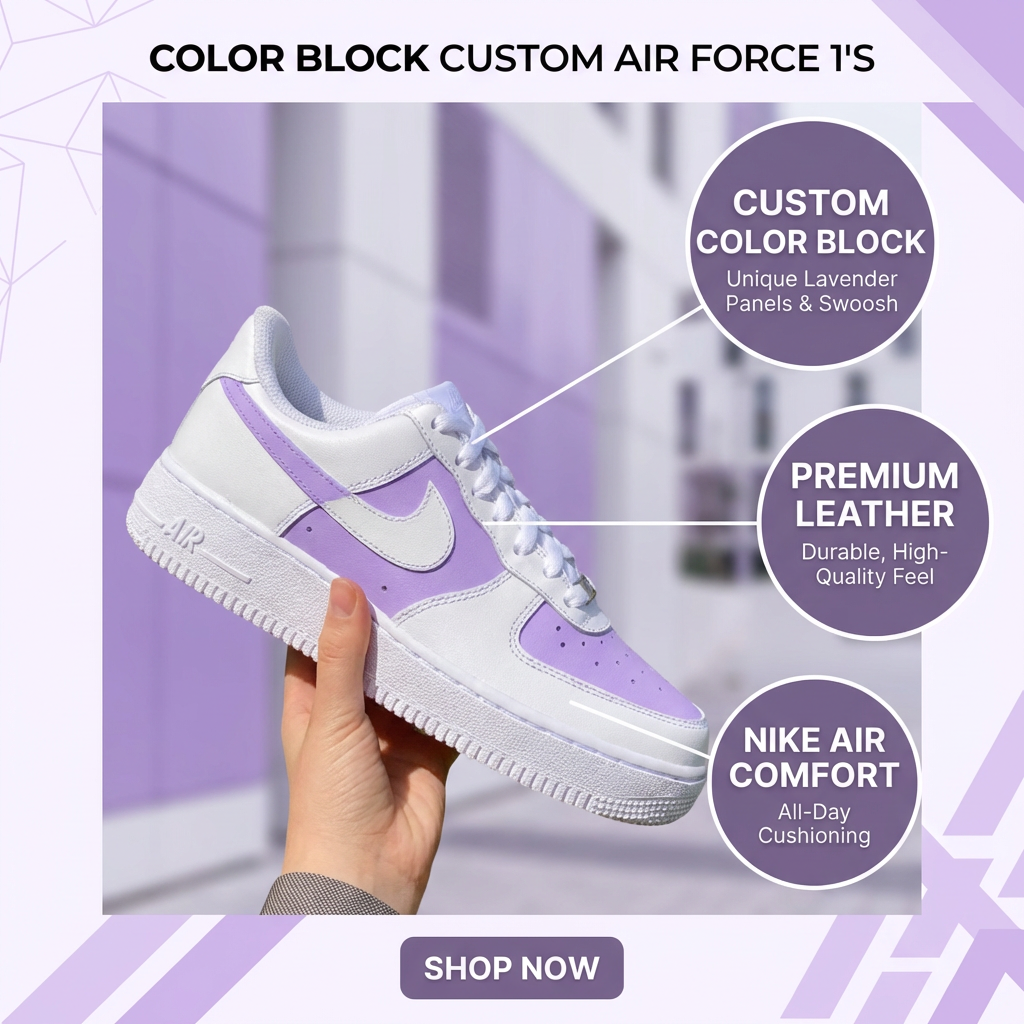
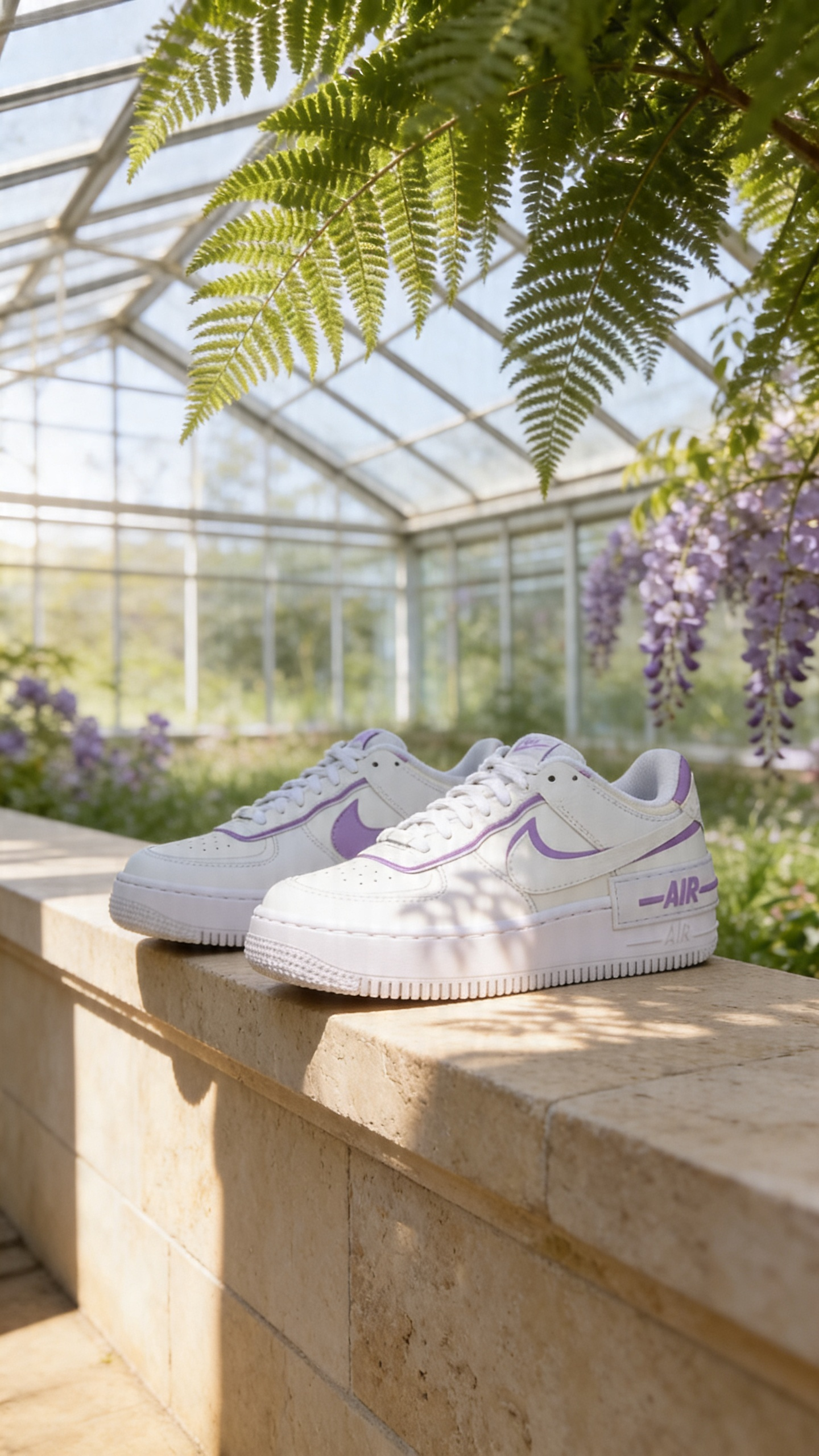


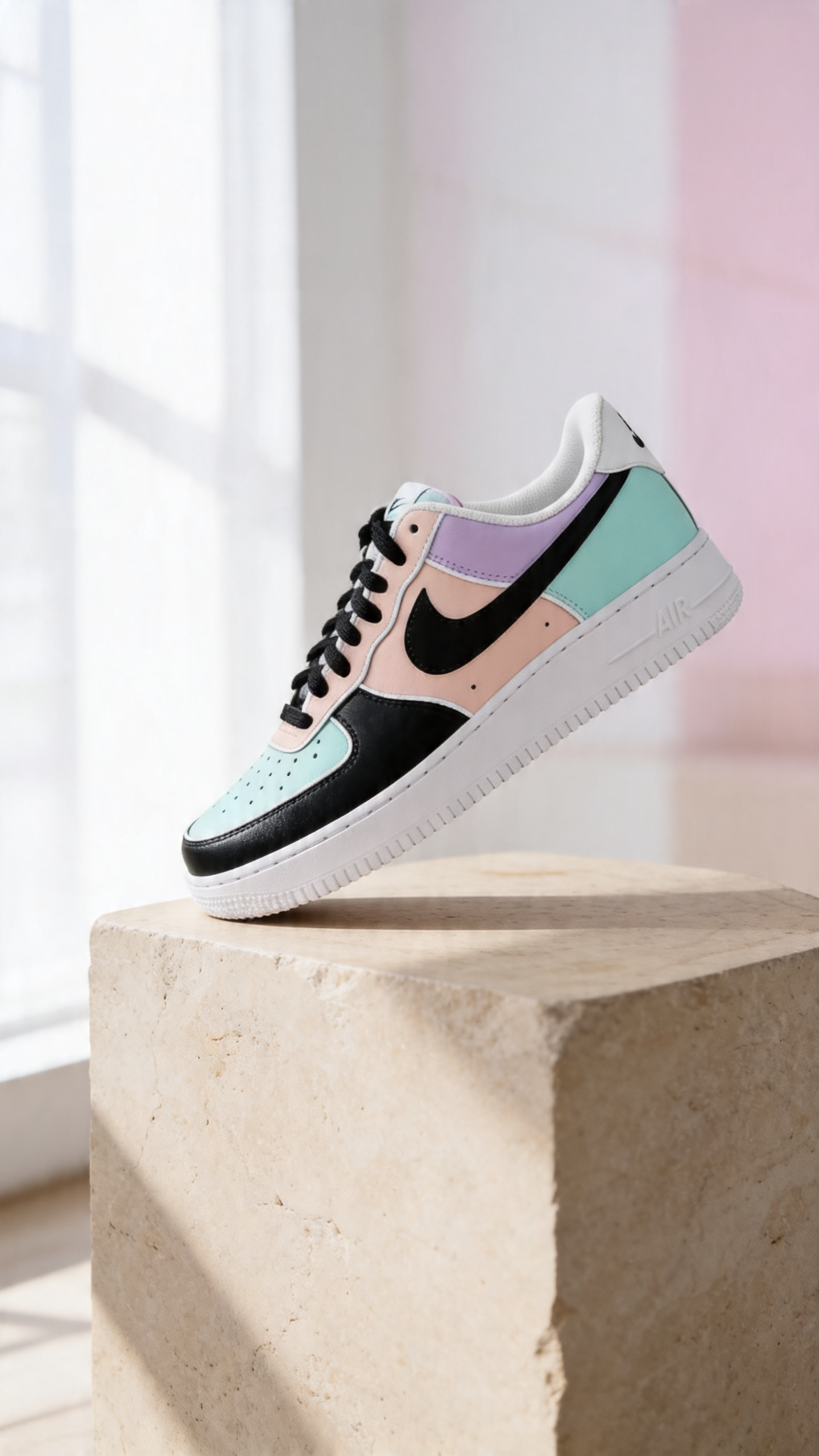

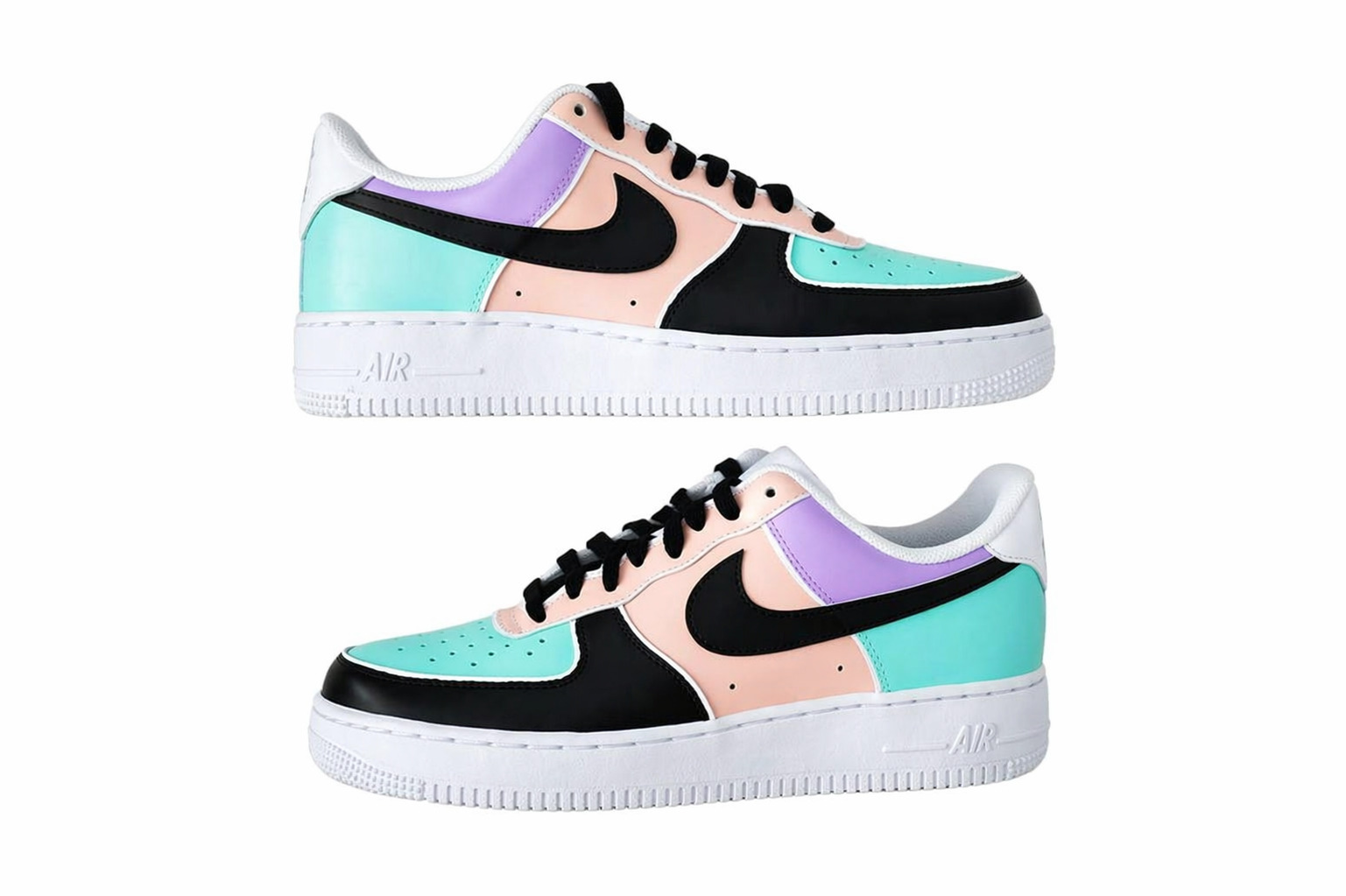
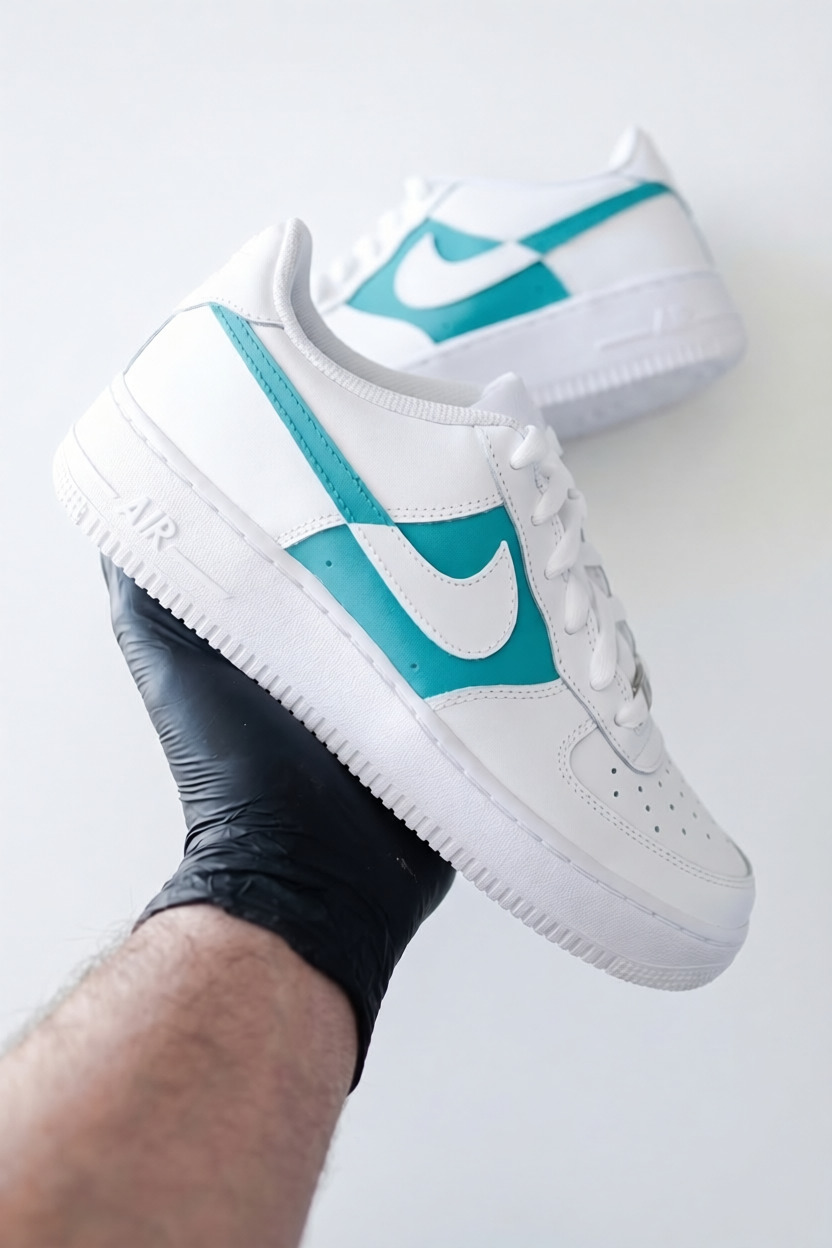
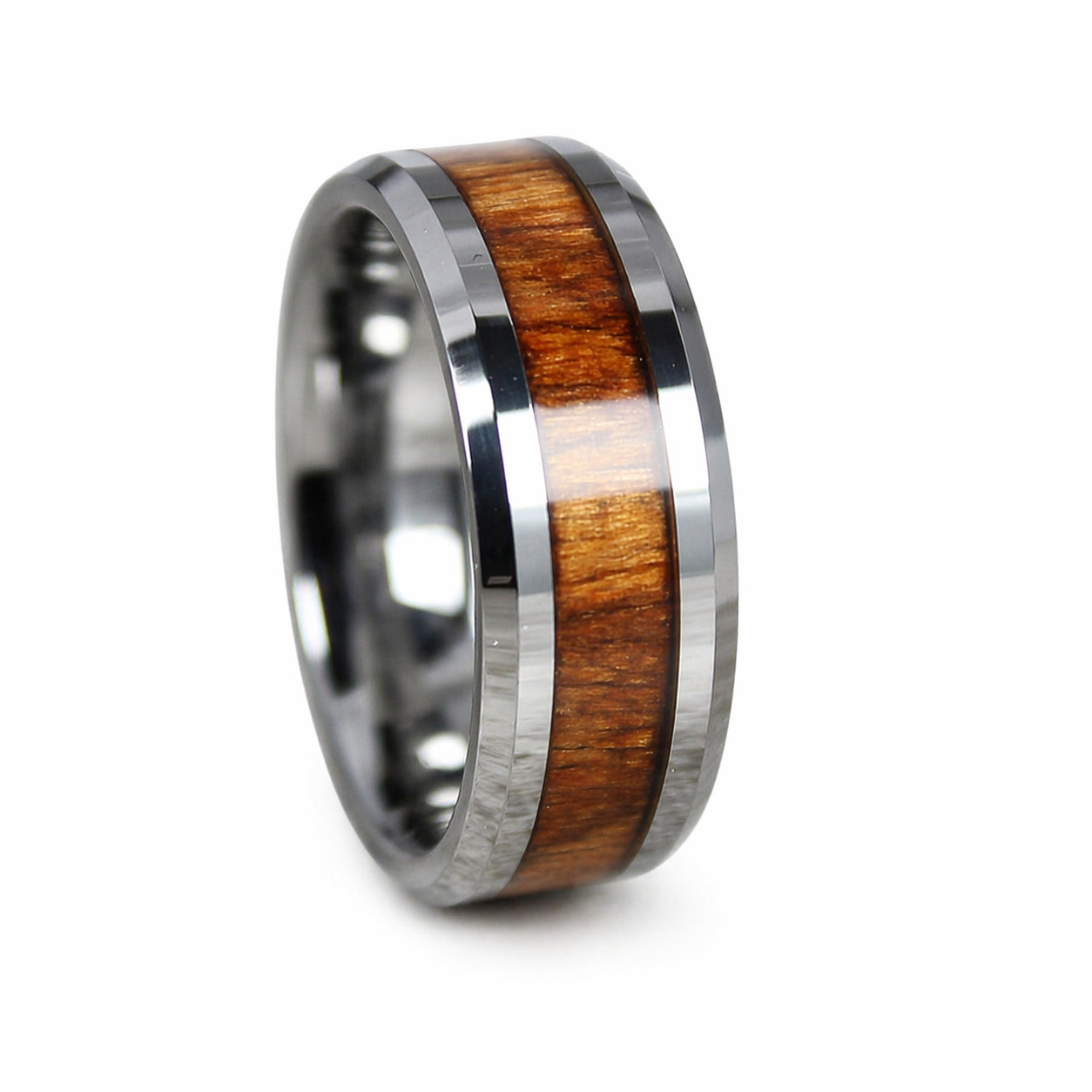



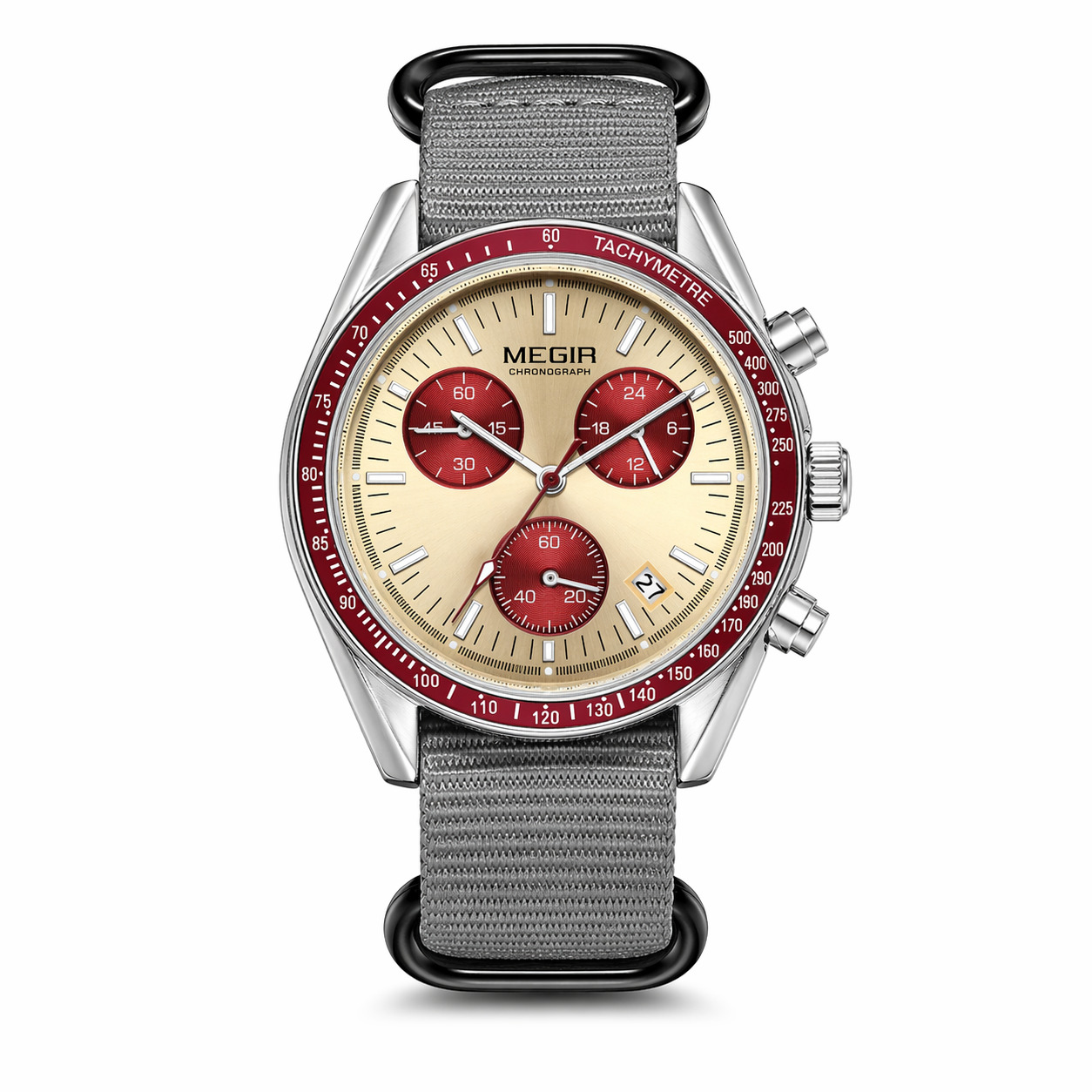
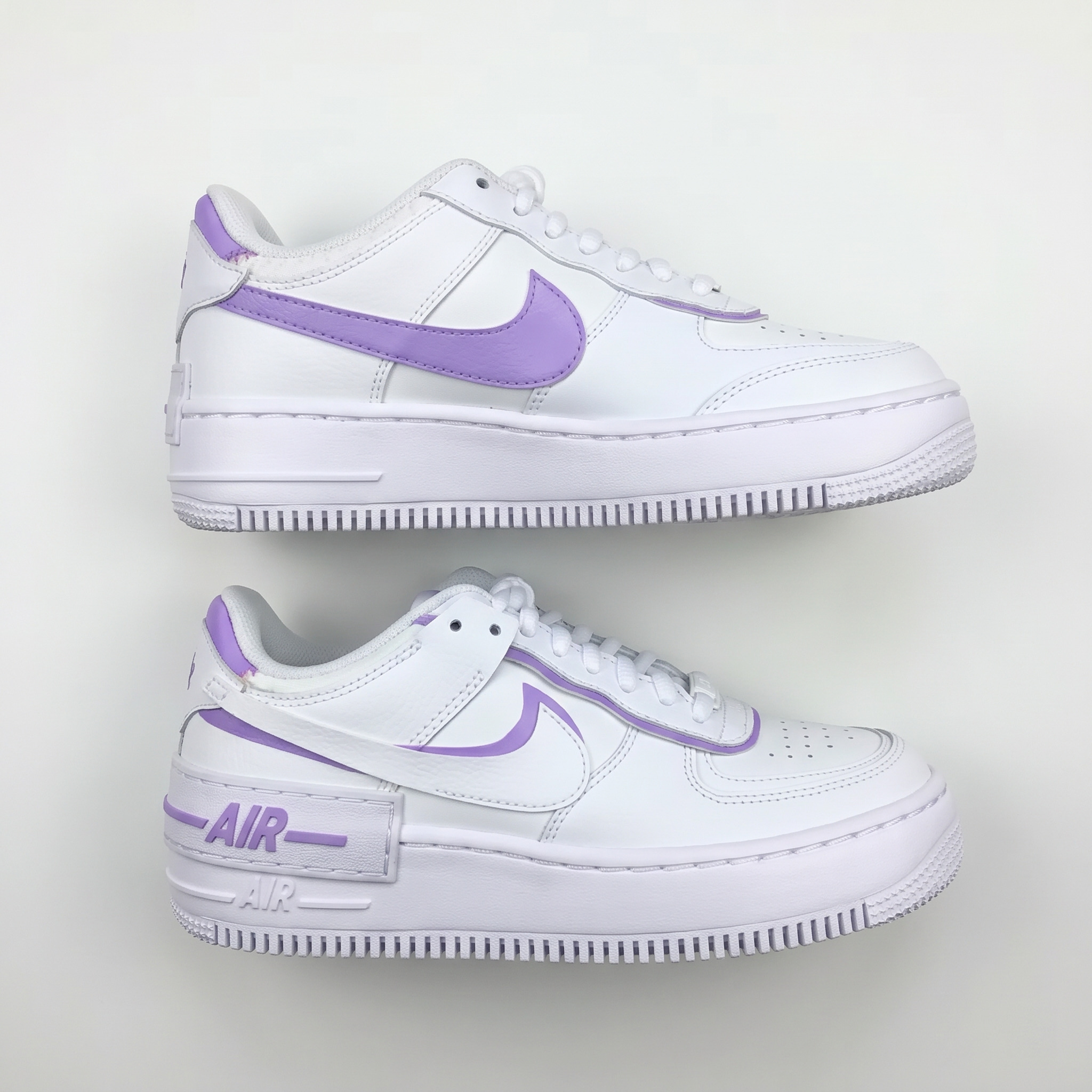
IMPORT
GENERATE
SCHEDULE
SCALE
How to Split an Image for Instagram (4 Simple Steps)
1
Upload your image
Drag and drop or click to upload any photo. JPEG, PNG, and WebP are supported.
2
Pan and zoom to frame
Drag the image to reposition it. Scroll to zoom in or out. What you see is what gets split.
3
Adjust grid settings
Choose rows, columns, tile ratio (1:1, 4:5, or 16:9), background color, and output format.
4
Download and post in order
Download all tiles as a ZIP. Post to Instagram from right to left, starting from the bottom row.